What is
Perforce?
Perforce is a commercial, proprietary revision control [an aspect of SCM] system developed by Perforce Software, Inc.
A typical Perforce employment includes the Perforce Server along with the Client [may be a Git Client or the Client that uses Perforce's own Protocols]
Note: Git clients communicate with the Perforce server over SSH or HTTPS, and other Perforce clients communicate with the server via TCP/IP using a proprietary RPC and streaming protocol.
Perforce Architechture
Perforce
Server
The Perforce server manages a central database and
a master repository [Depot] of file versions.
- Perforce Database
1.
Database is proprietary,
preconfigured, and self-installed.
2.
MD5 hashes of file content
are stored in the Database instead of the actual File Contents.
3.
System-related
metadata (file state, file
attributes, branching and merging history, changelists, change descriptions,
users, groups, labels, etc.) are stored as well.
- Perforce Depot
1.
Versioned
file content is stored in a master directory hierarchy whose top levels are
called "depots".
2.
All
revisions are preserved by default; limits can be set on the number of
revisions preserved.

Perforce Architechture
Perforce
Client
- Client Workstation requires the
Perforce Client to connect to the Server and fall into roughly five
categories: Git, Command, GUI, Web, Plugin.
- Perforce Client provides the
access to the Versioned files.
Perforce Server and Client SetUp:
Perforce Server Setup
Step 1: Navigate to the Perforce Site - http://www.perforce.com/downloads/Perforce/20-User and download P4D Server
Perforce Server Setup
Step 1: Navigate to the Perforce Site - http://www.perforce.com/downloads/Perforce/20-User and download P4D Server
 |
| Perforce P4D Server at Perforce Site |
Step 2: Double Click the Downloaded executable and double Click it. You will provided with the below Screen. Select Next.
 |
| Perforce Server Components |
Step 3: We'll be asked to provide the Port for other Client Machines to connect to this Perforce Server. Let's make it to default 1666.
 |
| Perforce Port Number |
Step 4: Once given Next, it's time to chose the Default Text Editing Application for Perforce. Let's make it to be the Legacy Application Notepad. Click Next. The Setup would initialize the Perforce Database and finally provide us the connection details which needs to be shared with the Client.
 |
| Text Editing Application Selection
Step 5: Finally the Setup would just provide us the the hostname along with the port number that needs to be shared to the Client Applications as in the below Screen. Make a note of it. Click Finish
 Perforce Client SetUp:Step1 : Navigate to the Site http://www.perforce.com/downloads/Perforce/20-User and download P4V Client.
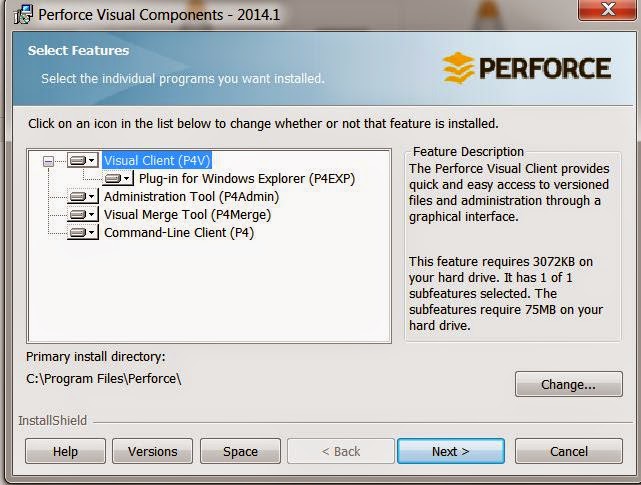
Step 2: Once P4V Client is downloaded, double click the executable to instantiate the installation procedure. We''ll be provided with all the components [p4Admin for UserManagement, p4V Visual Client for Workspace, Depot Access , p4 Command Line Perforce Tool] that can be installed per need. Once the Components are Selected, Click Next.
Step 3: Next we need to provide the details of the Server for the client to connect to. Here it is Ananda-VAIO:1666 [ Refer Step 5 metioned few snapshots above under Perforce Server SetUp] . Click Next.

Hurray !! We've set up the Perforce Server and Client.
|


