Friday, July 17, 2015

Docker


What is Docker?

                  Docker is a platform for developing, building and shipping the application using Container Virtualization Technology.

What Docker Consists of?

                 Docker Platform itself composed of many tools:

                        >>Docker Engine
                        >>Docker Machine
                        >>Docker Hub
                        >>Docker Swarm
                        >>Docker Compose
                        >>Kitematic

[Note: Container Virtualization uses kernel on host to create multiple containers. From outside it looks like we are dealing with VMs and not containers. But it is not.

We may be using the term hypervisor at many places below and a short note on what hypervisor is. A hypervisor or virtual machine monitor (VMM) is a piece of computer software [Ex. VMware VSphere], firmware or hardware that creates and runs virtual machines.
A computer on which a hypervisor is running one or more virtual machines is defined as a host machine. Each virtual machine is called a guest machine. ]
Why Docker?
               >>Docker interacts directy with the Kernel of Host OS whereas the hypervisor are something installed on the Host and operates based on the Guest Instances sharing the Hardware Resources.
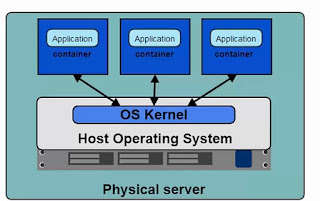
Docker Architechture
Hypervisor Architechture
This inturn sparks a question in mind. What makes Containers different from VMS?

  • Containers interact directly with Host Kernel.
  • Containers are lightweight and can be started quick.
  • Containers requires less CPU and RAM to Start up. Thus we can have more Containers. 
Docker Machine:

  • It's nothing but the boot2Docker that helps us setup the Virtual Linux Box, place Docker Engine within and Configure Container to talk to this Engine.
  • Docker Machine act the Docker Host.

Docker Engine:

Also referred as Docker Daemon.
  • It's a program that enables the Containers to be built, shipped and run.
  • The Docker Engine uses Linux-specific kernel features. We can relate just like the one below if our OS is Windows / Mac. 


Docker Engine

  • Thus we install boot2Docker that sets up the Virtual Linux Box and have the Docker Engine placed with in.

Docker Client
  • Docker clients helps in interacting with the Docker Server/ Docker Engine/
  • Docker Client fetch the Input from User and pass the details back to Docker Daemon for processing.
  • Docker Client and the Docker Machine(boot2Docker) in most of the cases are installed in the same host. Here it is the OS Platform that we use.
  • If not happy with Command line docker, we also opt for Kitematic that GUI Tool for interacting with Docker daemon.
[Note: command docker version on container returns the Daemon Version and the Docker Version]
Containers Vs Images:
         Images are read only Templates used to create the Containers. Stored in Local or the Docker Hub. While Containers are the Application Platform made up of multiple images.

Docker Registry/Hub Vs Repository:
         Images  can be stored in the registry/ Docker Hub. The registry holds multiple repositories and repository holds multiple images.

         Example: Docker Hub Public Registry - https://registry.hub.docker.com
                         Image fetched from repository is run using docker run [repo_name: tag_name] command

How to create the Docker Engine?

Gets Automatically created if not created at the start of the boot2Docker terminal. This is just a general info.

      Step 1:  Run the common in terminal boot2Docker delete
     Step 2:  boot2Docker init - brings up the Docker Engine. 
     Step 3: boot2Docker up - starts the Docker Engine and would make it run.
      Step 4:  boot2Docker ip - brings the IP Address
    
Common Docker Commands:

           docker run [repo_name: tag_name of image] -> Fetch the Image and installs in the Container.       
           docker start name_of_container -> Starts the Container.
           docker stop name_of_container -> Stops the Container.
           docker ps [-a include stopped containers] -> Lists all the Containers.
           docker rm <image | id>  -> Remove a Container.
           docker login Login the Containers with Docker Hub Credentials.


Sunday, July 12, 2015

Squirrel SQL

Squirrel SQL:

The SQuirreL SQL Client is a graphical program written in the Java programming language that will allow you to view the structure of a JDBC-compliant database, browse the data in tables, issue SQL commands and much more.

Configuration of Squirrel SQL to connect to Derby Database:

Step 1: Launch the Squirrel SQL.


Step 2: Click Add button and would be presented with the below dialog. Provide the Name, Example URL, Website URL and in the external Class Path, add the Jars derby.jar and derbyclient.jar that comes along with the Installation of Derby Database. Click OK button


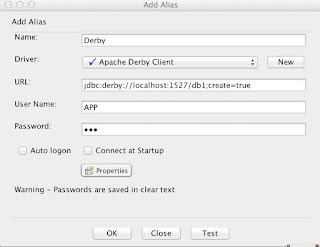
Step 3: Select Alias Tab. Feed in the below details: Sample Name, Driver that we created in Step 2, URL, Username and password being APP, Select Auto Logon and click Ok Button.


Step 4: Now we would be able to view the Contents of Derby Database.

Apache Derby

Apache Derby:

What is Apache Derby?
  • Relational database management being developed by Apache Software Foundation. 
History:
  • Was initially developed by the Developers of Cloudscape.
  • Informix later acquired Cloudscape. Acquisition continued. IBM acquired Informix and still extended its support for Derby.
  • Time Progressed. IBM later withdrew its support and Apache Software Foundation continued the development of Apache Derby.

Features of Apache Derby:


Max DB Size                      Unlimited

Max Table Size                  Unlimited
Max Row Size                    Unlimited
Max Columns per row      1012
Max Column Name Size   128 bits

When Apache Derby?

  • Apache Derby being written in Java and thus usable only by Java and other scripting languages(Jython, JRuby, Jacl, etc)  that run on JVM.
  • Consumes less Footprint and can be opted when we look for DB that can set quickly.
Installation of Apache Derby:
      In Windows:
                 >> Set the environment variable DERBY_HOME to the Derby installation directory
                 >> Add DERBY_HOME/bin to the "path" environment variable

       In Mac:
               >>Open the Terminal and hit vi ~/.bash_profile 
               >>Now enter the below set of values
                     export DERBY_HOME=/Volumes/D Drive/Softwares/db-derby-10.11.1.1-bin
                     export PATH=$PATH:$DERBY_HOME/bin

Check the Installation    

To check if Derby has been successfully installed, run the following command where /User/hspadmin... is the location of derbyrun.jar residing within lib directory

java -jar /Users/hspadmin/Applications/db-derby-10.11.1.1-bin/lib/derbyrun.jar sysinfo


Once run, you should get the below output:

------------------ Java Information ------------------
Java Version:    1.7.0_75
Java Vendor:     Oracle Corporation
Java home:       /Library/Java/JavaVirtualMachines/jdk1.7.0_75.jdk/Contents/Home/jre
Java classpath:  /Users/hspadmin/Applications/db-derby-10.11.1.1-bin/lib/derbyrun.jar
OS name:         Mac OS X
OS architecture: x86_64
OS version:      10.9.5
Java user name:  hspadmin
Java user home:  /Users/hspadmin
Java user dir:   /Users/hspadmin
java.specification.name: Java Platform API Specification
java.specification.version: 1.7
java.runtime.version: 1.7.0_75-b13
--------- Derby Information --------
[/Users/hspadmin/Applications/db-derby-10.11.1.1-bin/lib/derby.jar] 10.11.1.1 - (1616546)
[/Users/hspadmin/Applications/db-derby-10.11.1.1-bin/lib/derbytools.jar] 10.11.1.1 - (1616546)
[/Users/hspadmin/Applications/db-derby-10.11.1.1-bin/lib/derbynet.jar] 10.11.1.1 - (1616546)
[/Users/hspadmin/Applications/db-derby-10.11.1.1-bin/lib/derbyclient.jar] 10.11.1.1 - (1616546)
[/Users/hspadmin/Applications/db-derby-10.11.1.1-bin/lib/derbyoptionaltools.jar] 10.11.1.1 - (1616546)
------------------------------------------------------

Command to Start the Derby Server

            startNetworkServer

Change the Port of Derby Server

     By default Derby Server runs on the port 1527 and we can change the default port by the below command:

           startNetworkServer -p 3301

Accept of Connections from specific host:

   By default Derby accepts connections only from localhost and to make it accept the request from other hosts, run the below command with ip address/ domain name

         startNetworkServer -h  testserver.testdomain.com

Accept of Connections from all Host:

         startNetworkServer -h  0.0.0.0

View the Contents of the Database:

Apache Derby doesnot provide any provision for Graphical view of the DB Contents. 
We normally use the Tools IJ / Squirrel SQL Client for this Purpose.


Wednesday, May 27, 2015

JSHint


What is JSHint?
  • Static Code Analysis Tool - means analysis is done without actually executing the Source Code.
  • Flexible and facilitates the customizability of Coding rules.
What JSHint does?
  • Validates the Javascript code to check if it complies with the predefined coding rules.
  • Ensures Code quality and improves maintainability.
Architecture of JSHint
  • JSHint rests on top of JSLint (Lint Project initially set up Crockford)


Setting up JSHint
  • JSHint is distributed as a node module and thus it requires Node.js and NPM to be installed in the System.
  • Install jshint globally with the below command which would help us to trigger JSHint directly via cmd.
           > npm install -g jshint 


  •  Now that we have installed jshint , we can run the analysis against any Javascript file like one such below.
           >jshint testFile.js


.jshintrc - Configuration file

  • .jshintrc is the configuration file where we define the rules that our Source Code should comply with.
      Generation of of .jshintrc
              
               * We use yeoman to generate this file as JSHint command line tool doesn't facilitate this generation.
              * Yeoman is a Scaffolding Tool. It's ok if we are not familiar with yeoman at this moment, we gonna just execute the couple of commands below with it for .jshintrc file generation.

                npm install -g yo  [Installs yeoman]

                npm install -g generator-jshint  [Installs jshintrc generator - one of Yeoman Generator]


                yo jshint [Generates .jshintrc file]


[Refer https://github.com/jshint/jshint/blob/master/examples/.jshintrc for the default values for the Applicable rules]

Static Code Analysis .jshintrc File

  • Execute the command jshint .jshintrc js/app.js to run the analysis for the app.js file within the directory named js. 


  • In the command jshint and .jshintrc corresponds to the jshint installed globally  and  .jshintrc - configuration file generated earlier using yeoman.


Friday, March 6, 2015

Ruby Gems - Compass and Sass

Ruby Gems
  • RubyGems is a package manager for the Ruby programming language.
  • Facilitates the easy installation of gems [Ruby Programs] and also in managing the Server that distributes gems

Why we go for Ruby Gems?
  • Ruby Gems helps in downloading and managing the gems. In specific it helps in installing the Sass tool and compass too to compile the .scss files to .css

Installation of Ruby Gems
  • RubyGems comes as a part of standard library with the Ruby Version 1.9.
  • Download Ruby Gems from http://rubyinstaller.org/downloads/ and install it.

Installation of Gems:
Let's install sample Gem [Sass / Compass - Ruby Gems]
Step 1
    Check if Ruby and Ruby Gems have correctly installed using the commands
ruby --version
gem --version
Step 2
    Setup up the Environment in the Platforms Windows and Mac.
    Windows
    Run the below commands that removes the SSL security which in turn would help us handshake with Ruby Server      
        gem sources -r https://rubygems.org/ - to temporarily remove secure connection
gem sources -a http://rubygems.org/ - add insecure connection
gem update --system - now we're able to update rubygems without SSL
    Mac
    sudo gem update --system  
        xcode-select --install //Installs the xcode command line tool that lays the platform for installing compass later
Step 3
   Install the gems as below
    Windows:    
    gem install sass
  gem install compass
    Mac:
    sudo gem install sass
    sudo gem install compass

Wednesday, March 4, 2015

Gulp

What is Gulp?

  • Gulp is advertised as streaming build system that does the job of Minification, Compilation, Watcher of File Changes etc and can be compared to grunt.

What are Environment Prerequistes?

  • Gulp should be installed Globally using the command npm install gulp -g that we can access the local Glup Files using the Command Line  Commands.
  • The Project Directory we are working should have Gulp Configuration File and Gulp installed within [whihc can be done by using the command npm install gulp].

How Gulp Works overall?

    We execute the Project running on Gulp using the command gulp. This would invoke the globally installed gulp and make it to search for the Gulp Configuration File [gulp.js] located locally within Project directory.

   Gulp.js then loads the locally installed gulp to achieve the Gulp tasks configured within.


Sample Gulp File to Live Reload the html files and also to host the files in the Server by invoking the index.html file as the StartUp

  1. var gulp = require('gulp');
  2. var express = require('express');
  3. var lr = require('tiny-lr')();

  4. gulp.task('serve',function(){
  5.   var app = express();
  6.   app.use(require('connect-livereload')());
  7.   app.use(express.static(__dirname));
  8.   app.listen(4000);
  9. });

  10. gulp.task('liveReload',function(){
  11. lr.listen(35729);
  12. });

  13. gulp.task('default',['serve','liveReload'], function () {
  14.   gulp.watch('*',notifyLivereload);
  15.   gulp.watch('*.js',notifyLivereload);
  16. });


  17. // Notifies livereload of changes detected
  18. // by `gulp.watch()`
  19. function notifyLivereload(event) {

  20.   // `gulp.watch()` events provide an absolute path
  21.   // so we need to make it relative to the server root
  22.   var fileName = require('path').relative(__dirname, event.path);

  23.   lr.changed({
  24.     body: {
  25.       files: [fileName]
  26.     }
  27.   });
  28. }


Friday, February 27, 2015

Grunt

What is Grunt?

Grunt is basically a TaskRunner that automates the repetitive tasks such as minification, compilation of preprocessor language into css and also act as an effective build system.

How Grunt Works? [Just know how things work in general, we would see it in detail in sections following below]

We run the grunt command at the Projects Root Directory, Grunt-CLI looks for Locally Installed Grunt [We install grunt locally by running the command npm install grunt --save-dev at Project Root Directory]and if found loads it. Once done Gruntjs file (holds required configurations for Grunt tasks to run) is loaded and configurations in it is applied and Gruntjs File also in turn loads the package.json file if needed which is provided by npm [generated by npm init command].

Installation of Grunt Command Line Intrerface and Setting up Grunt

Step 1: Install the Grunt Command Line Interface globally using the command npm install grunt-cli -g  


[ Note: Grunt-cli doesn't include the Grunt Task Runner.  Grunt -cli  is mainly used to process the Grunt Files located somewhere in the system. To perform automation and the Minification Task, we actually need grunt installed within the working directory.]

Step 2: Check if grunt is installed succesfully using the command grunt --version 

Thus the Grunt Command Line Interface has been successfully installed globally and would be able to access it via command line

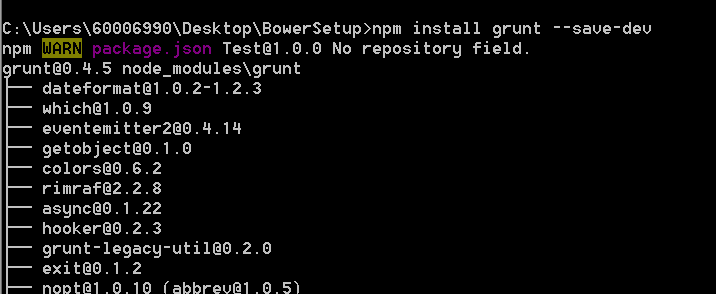
Step 3: Now let's setup the Grunt Task Runner Locally. Navigate to the Project Root Directory and run the command npm install grunt --save-dev. This would generate node-modules directory and place grunt task runner within.


Step 4: Generate the package,json file by executing the command npm init at Project's Root Directory.

We now have Grunt-Cli Installed Globally, Grunt Task Runner Locally and package.json file created.

Setting up Gruntfile.js 

To Specify what Tasks need to be run, Register the Tasks, Load the required NPM Modules for executing the Tasks etc we need some configuration mechanism and GruntFile.js serve this purpose.

Sample Working Grunt Demo 

Tutorial 1: Using Grunt, we are going to compile .less file to .css file and the .coffee file to .js file

Step 1 : Let's create a Directory that all our work would go within. Install Grunt locally by executing the command npm install grunt --save-dev 

Also install Grunt Coffee Plugins and Less Plugin as below:

Step 2: Create an html file named index.html, and files site.less and site.coffee within directories  less and coffee respectively such that complete working directory would be looking as below.


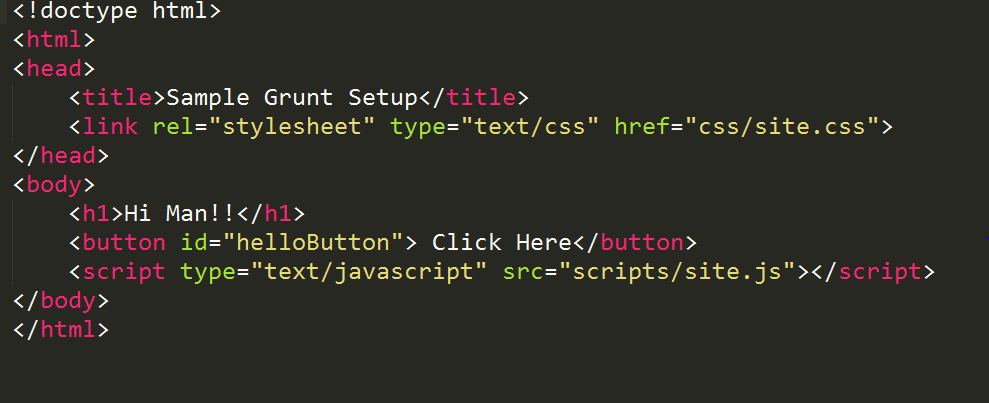
Step 3: Include these entities in the Html File, .coffee file and .less file


index.html


site.less

site.coffee
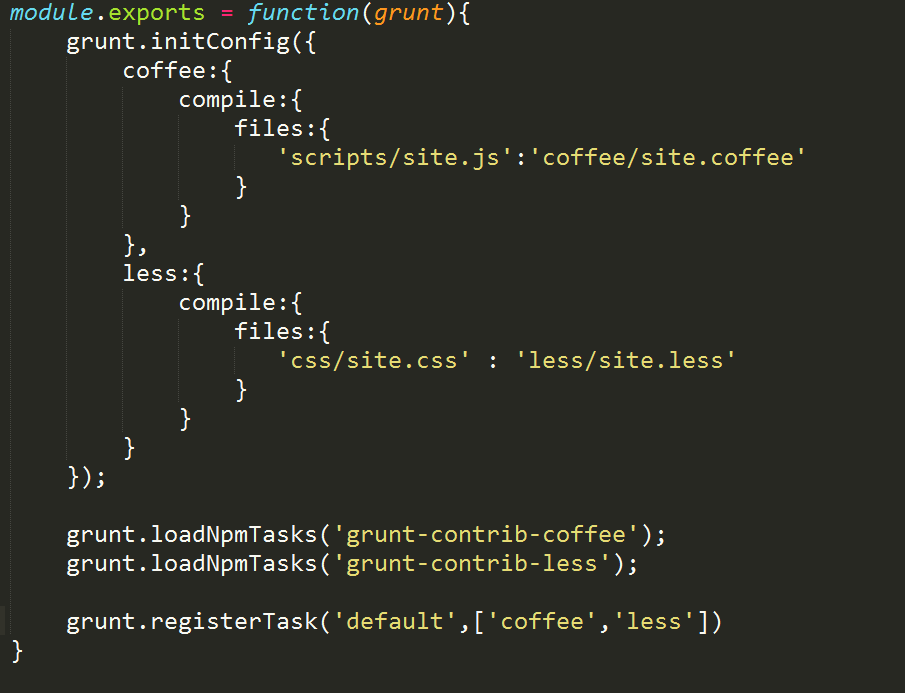
Step 4: Now create the GruntFile.js that takes up the required configurations to initialize the task, load the required NPM Modules, register the Task etc.


Step 5: Execute the Command grunt at the project root directory to invoke the Grunt-Cli which inturn would generate the .css and .js file from .less and .coffee  files respectiely.

Step 6: Run the index.html to find how the generated .css and .js applies.